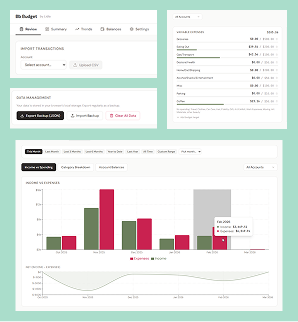
Offline Budget Tool

Timeline:
Oct 2025 – Mar 2026
Role:
Design & Dev (solo)
Tools:
React, Tailwind CSS, Recharts, localStorage

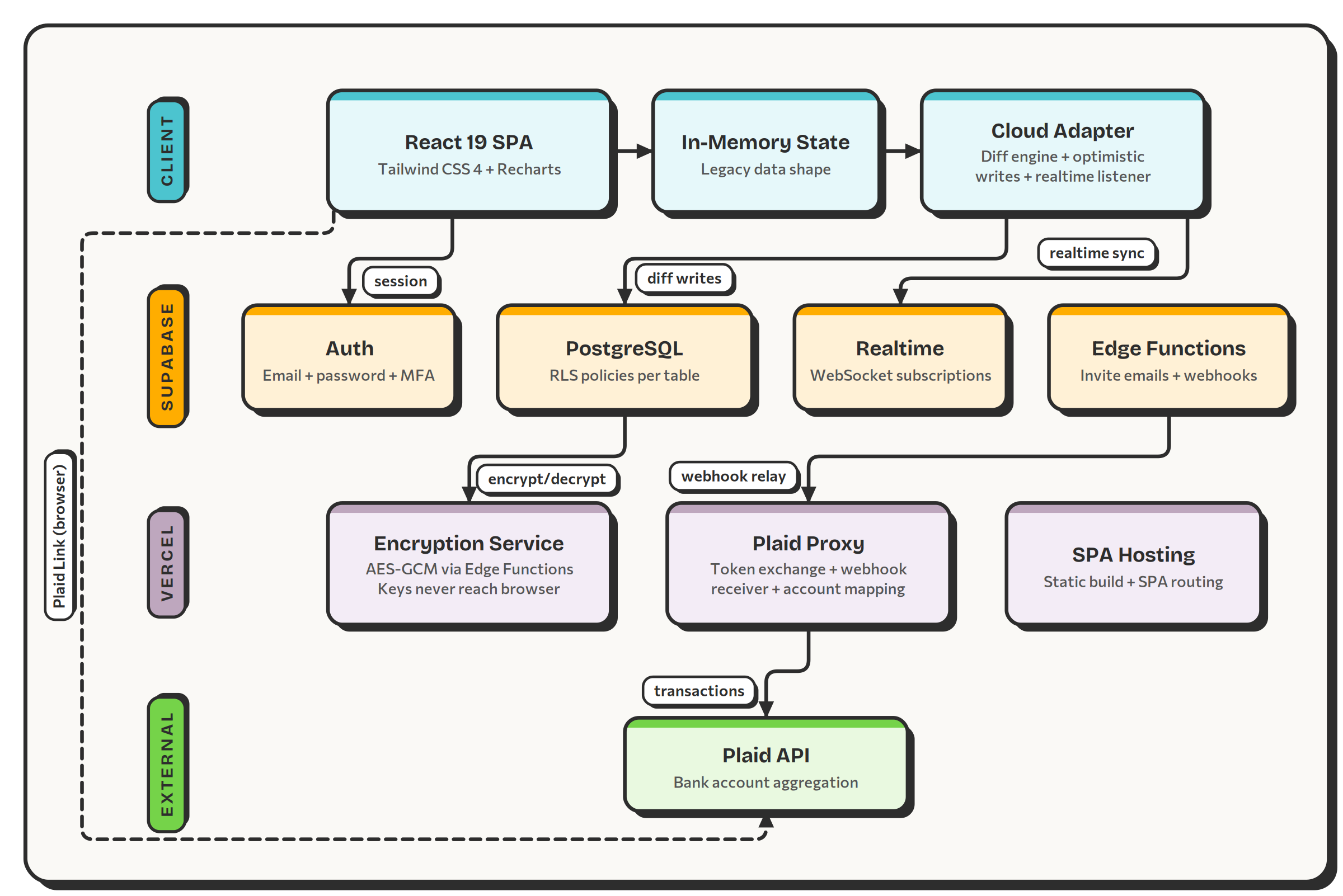
A privacy-first budgeting tool that automates the tedious parts of tracking finances while keeping the user in control — secure by design, with no server, no account, and no data leaving the browser.

Try the Tool →

Overview

Most budgeting apps require linking bank accounts through third-party services, creating a trust problem before the user even starts. For someone already overwhelmed by finances, handing credentials to an app they don't fully understand is a non-starter. The ones that don't require linking tend to be manual-entry tools that demand too much effort, or spreadsheets that offer no guidance.

The challenge was designing a tool that is secure enough that financial data never leaves the device, automated enough that CSV imports and auto-categorization reduce the tedious work, but engaged enough that users verify their numbers through balance snapshots during each budgeting session — and personalizable enough that users can set and track their own budget targets and goals without overwhelm.

The result is a tool that runs entirely in the browser with no server, no account, and no data leaving the device. Users import bank CSVs, categorize transactions with smart auto-suggestions, set budget targets, and track trends over time — all stored in localStorage on their machine. Balance snapshots let users periodically confirm their account totals against the computed values, catching discrepancies and building trust in the tool's accuracy.

Goals

  • Keep financial data fully private — no server, no account, no third-party access
  • Automate repetitive tasks (CSV parsing, categorization) while keeping the user in the verification loop
  • Let users personalize budget targets, categories, and subscriptions to match their life
  • Build progressive complexity — simple to start, powerful as confidence grows

Constraints

  • No backend — all data stored in browser localStorage
  • Must work offline and without account creation
  • Needs to handle real transaction volumes (1,000+ entries)
  • Solo project — design, development, and testing all on me

Understanding Users

This tool was born from my own frustration. I used to budget with a spreadsheet I maintained by hand — downloading CSVs from multiple bank accounts, copying rows into tabs, categorizing each transaction, and manually calculating totals. It worked, but it was tedious enough that I'd put it off for weeks, then face a backlog of hundreds of transactions. I needed a tool that did the repetitive parts for me while still letting me verify every number myself.

The people who would benefit most from a tool like this share a few common traits:

Who This Is For

  • People who budget with spreadsheets and want something faster
  • People who distrust apps that require bank login credentials
  • People who have tried budgeting apps and found them overwhelming
  • People who want to see exactly where their money goes without jargon

Common Challenges

  • Manual data entry is tedious enough to kill the habit
  • Linking bank accounts feels like a security risk
  • Most apps show too much at once — dashboards with dozens of widgets
  • No way to verify that the app's numbers match reality

Design Process

Visual Design

The warm, muted palette — olive green for income, muted rose for expenses — was chosen to reduce the anxiety that comes with financial dashboards. Colors, widgets, and icons in budgeting apps can be overstimulating. This tool uses softer tones that convey information without judgment. The clean, warm-toned background and generous whitespace make the interface feel calm rather than clinical.

Information Architecture

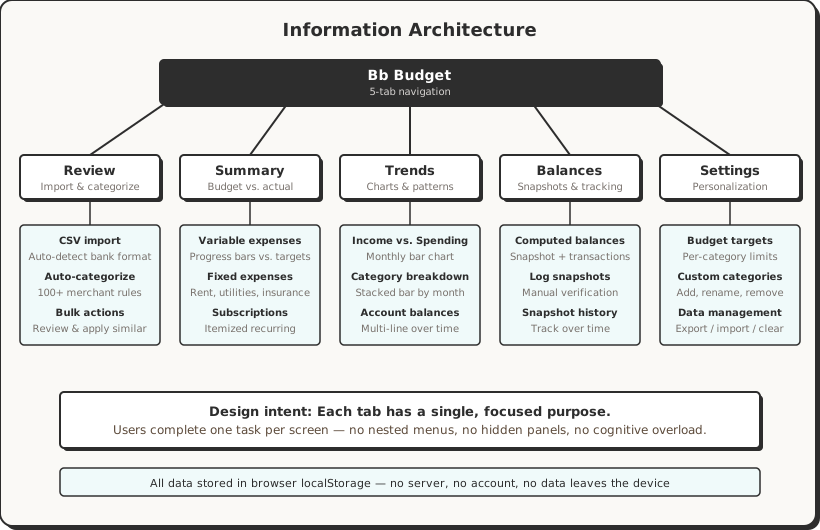
The app is organized around five primary tabs — Review, Summary, Trends, Balances, and Settings — each with a single, focused purpose. This flat navigation means every feature is one click away. No nested menus, no hidden panels, no "more options" drawers. The most important actions (importing transactions, reviewing spending) come first in the tab order.

Information architecture diagram showing the five-tab structure: Review (CSV import, auto-categorize, bulk actions), Summary (variable expenses with progress bars, fixed expenses, subscriptions), Trends (income vs spending, category breakdown, account balances), Balances (computed balances, log snapshots, snapshot history), and Settings (budget targets, custom categories, data management). All data stored in browser localStorage.

One Task Per Screen

The core design choice is limiting how much a user has to process on each screen. Each tab answers one question: Review asks "what did I spend?" Summary asks "am I on budget?" Trends asks "what are the patterns?" Balances asks "are the numbers right?" Settings asks "how do I want this to work?" By isolating these tasks, the user always has a clear path to complete what they came to do without being distracted by unrelated information.

Features

All screenshots below use generated demo data — no real financial information is shown.

Transaction Review

The Review tab is the app's home base. Users import bank CSVs and categorize transactions one by one or in bulk. Each row shows date, description, account, amount, and a category dropdown. An auto-categorize feature handles repeat merchants, and a progress bar shows how many transactions have been reviewed — turning a tedious task into a completable one.
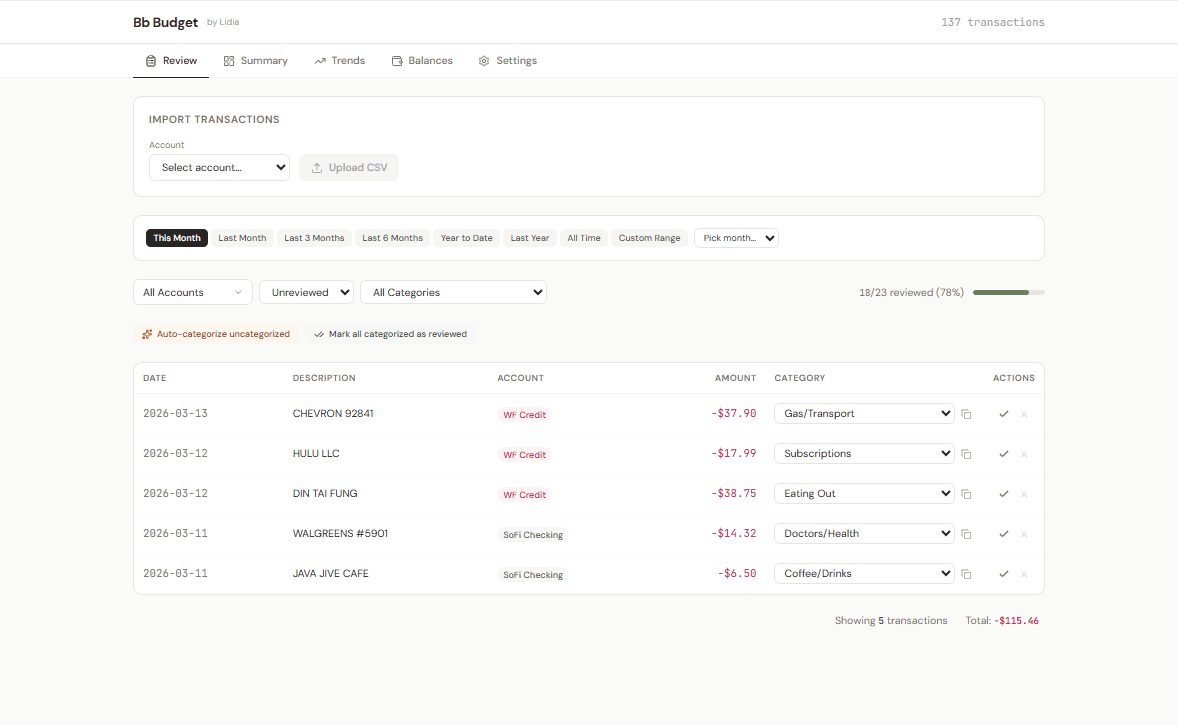
Bb Budget Review tab showing unreviewed transactions for March 2026. Five transactions listed with date, description, account, amount, and category dropdowns. Progress bar shows 18 of 23 reviewed (78%). Auto-categorize and Mark all categorized as reviewed actions visible above the table.

Monthly Summary

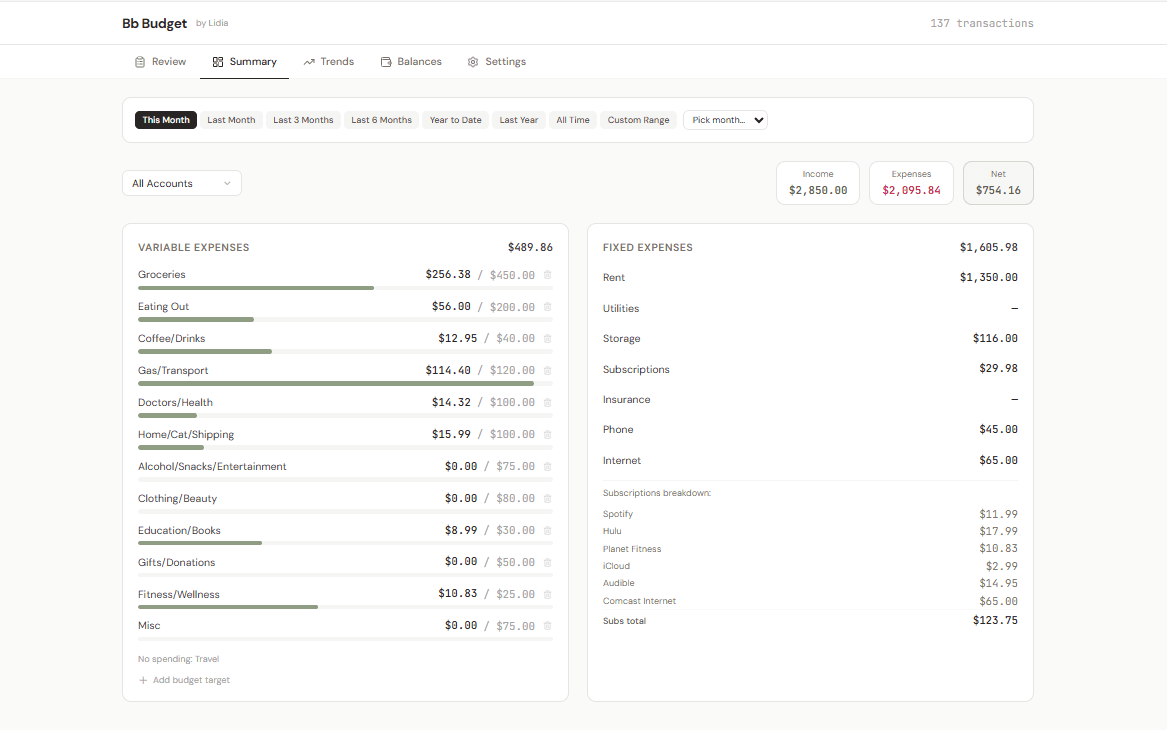
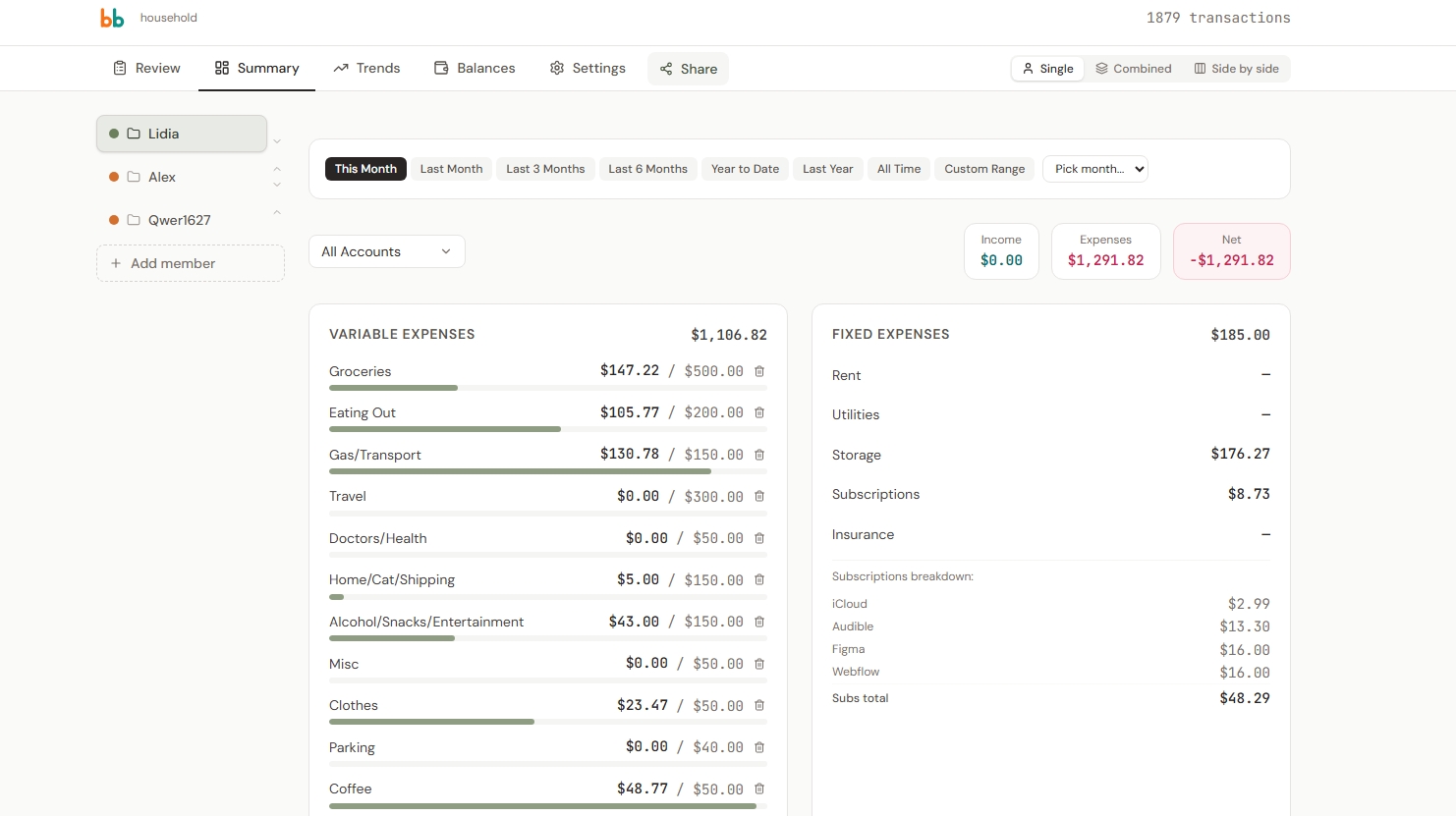
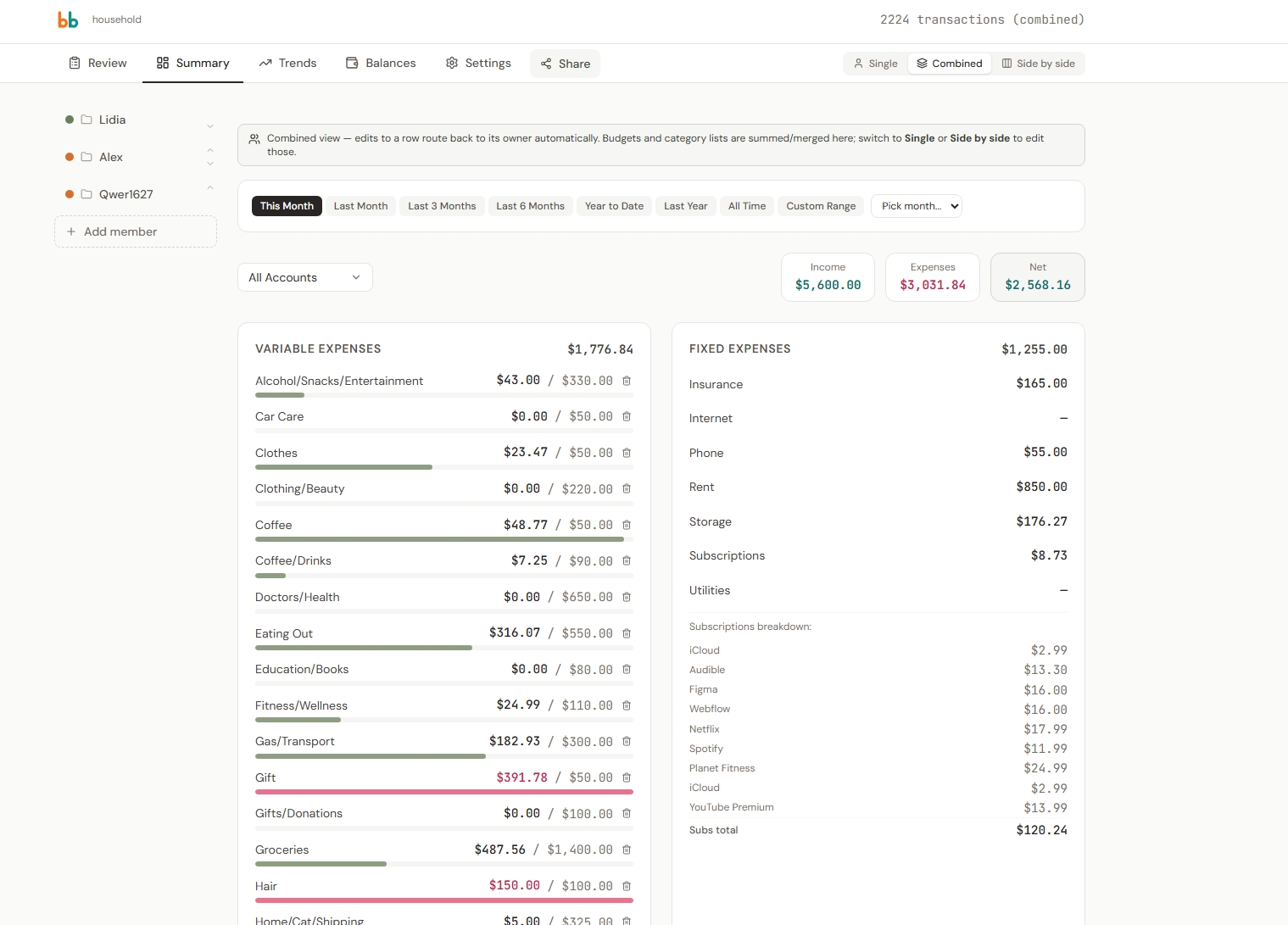
The Summary tab breaks spending into variable and fixed expenses with budget targets. Progress bars show spending against each category's limit. Fixed expenses (rent, subscriptions) are separated from variable spending so users can see what they control. The subscription breakdown itemizes recurring charges so nothing hides in a lump sum.

Bb Budget Summary tab for March 2026 showing income of $2,850, expenses of $2,095.84, and net of $754.16. Variable expenses at $489.86 with progress bars for Groceries ($256.38 of $450), Eating Out ($56 of $200), Gas/Transport ($114.40 of $120). Fixed expenses at $1,605.98 including rent, storage, phone, internet, and subscriptions totaling $123.75 per month.

Trends

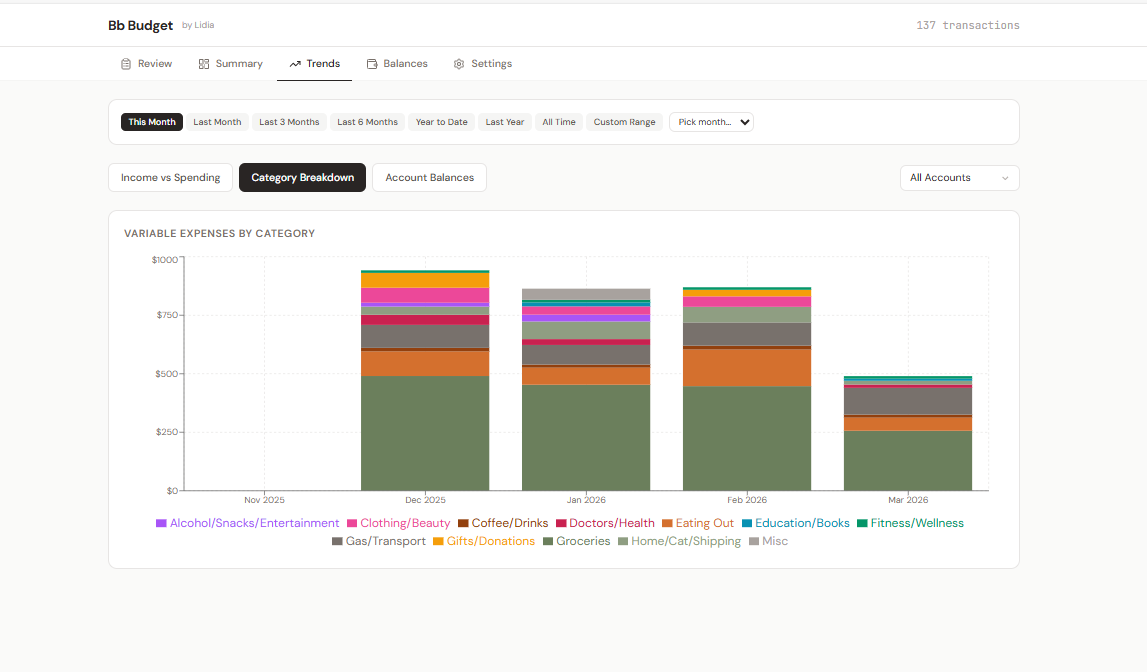
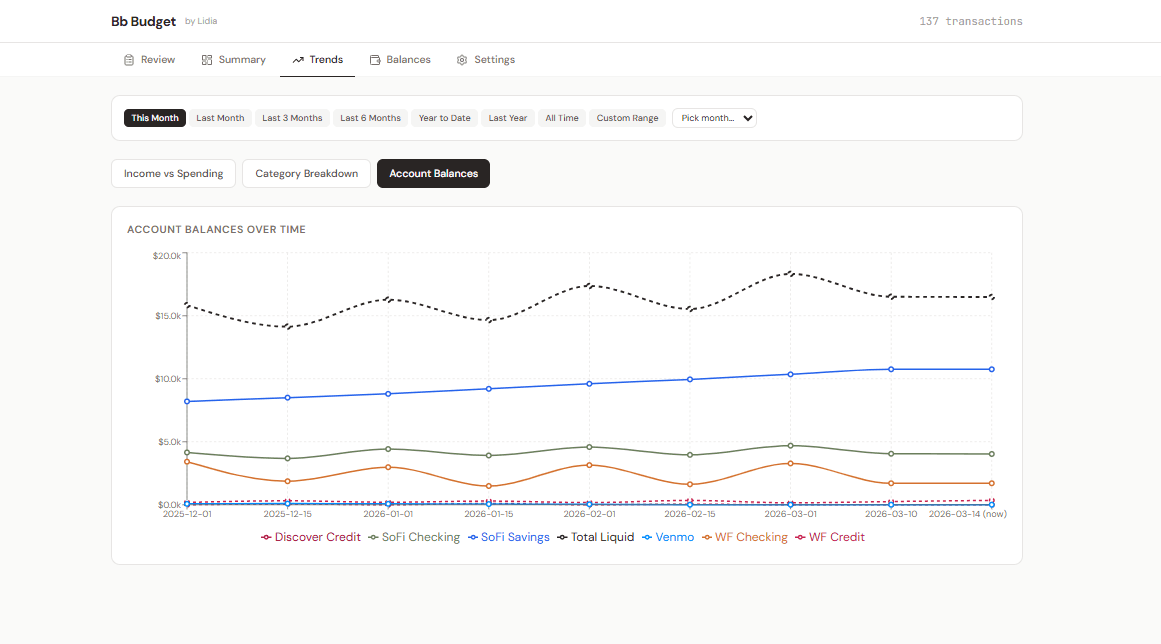
The Trends tab offers three views: Income vs Spending (bar chart comparing monthly totals), Category Breakdown (stacked bar showing where money goes), and Account Balances (line chart tracking liquid assets over time). Time range filters let users zoom in on any period. This is where the budgeting story emerges — patterns that are invisible in transaction lists become clear in visual form.
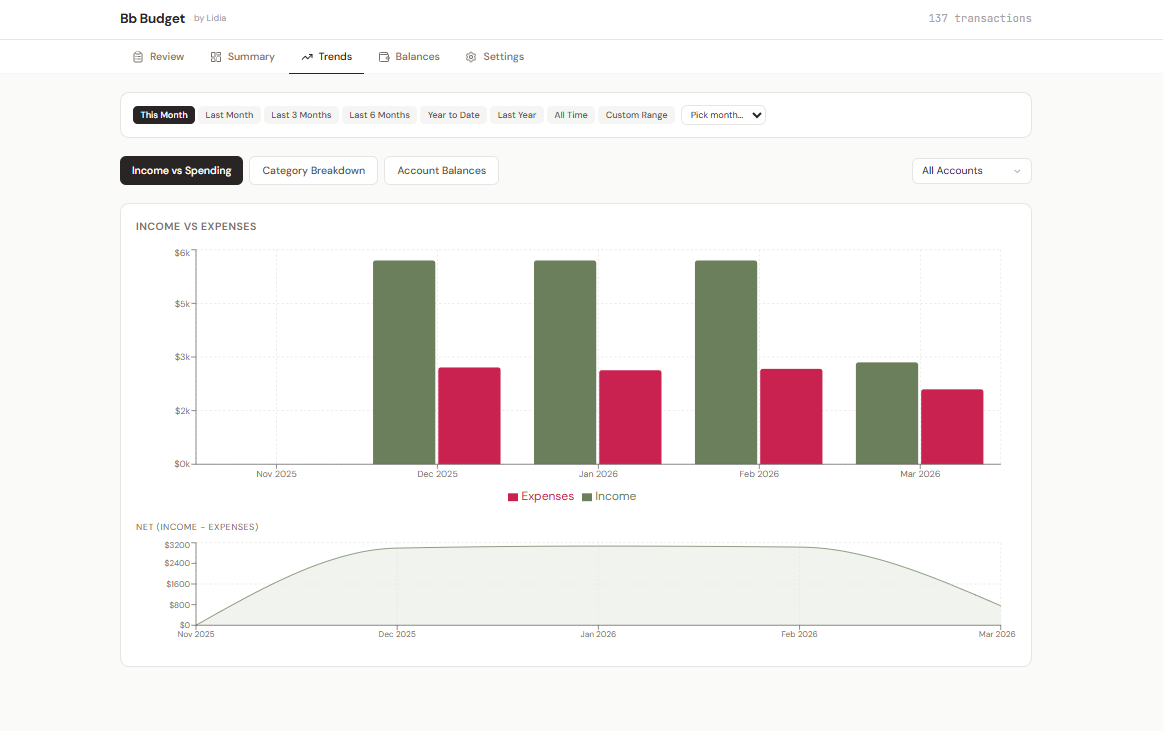
Bb Budget Trends tab showing Income vs Spending bar chart from November 2025 to March 2026. Olive green bars represent income, muted rose bars represent expenses. A net income area chart below shows the cumulative difference over time. Category Breakdown view showing stacked bar chart of variable expenses by month from November 2025 to March 2026. Categories include Groceries, Eating Out, Coffee/Drinks, Gas/Transport, Clothing/Beauty, and others, color-coded with a legend. Account Balances Over Time line chart tracking six accounts and total liquid assets from December 2025 to March 2026. Total Liquid (dashed black line) trends upward from around $15,800 to $16,500. SoFi Savings (blue) shows steady growth toward $10,750.

Balances

The Balances tab is where trust in the tool gets built. Users log balance snapshots — their actual account totals on a given date — and the app computes current balances by adding or subtracting all imported transactions since that snapshot. This lets users periodically verify that the tool's numbers match reality, catching missed imports or duplicate entries before they compound.
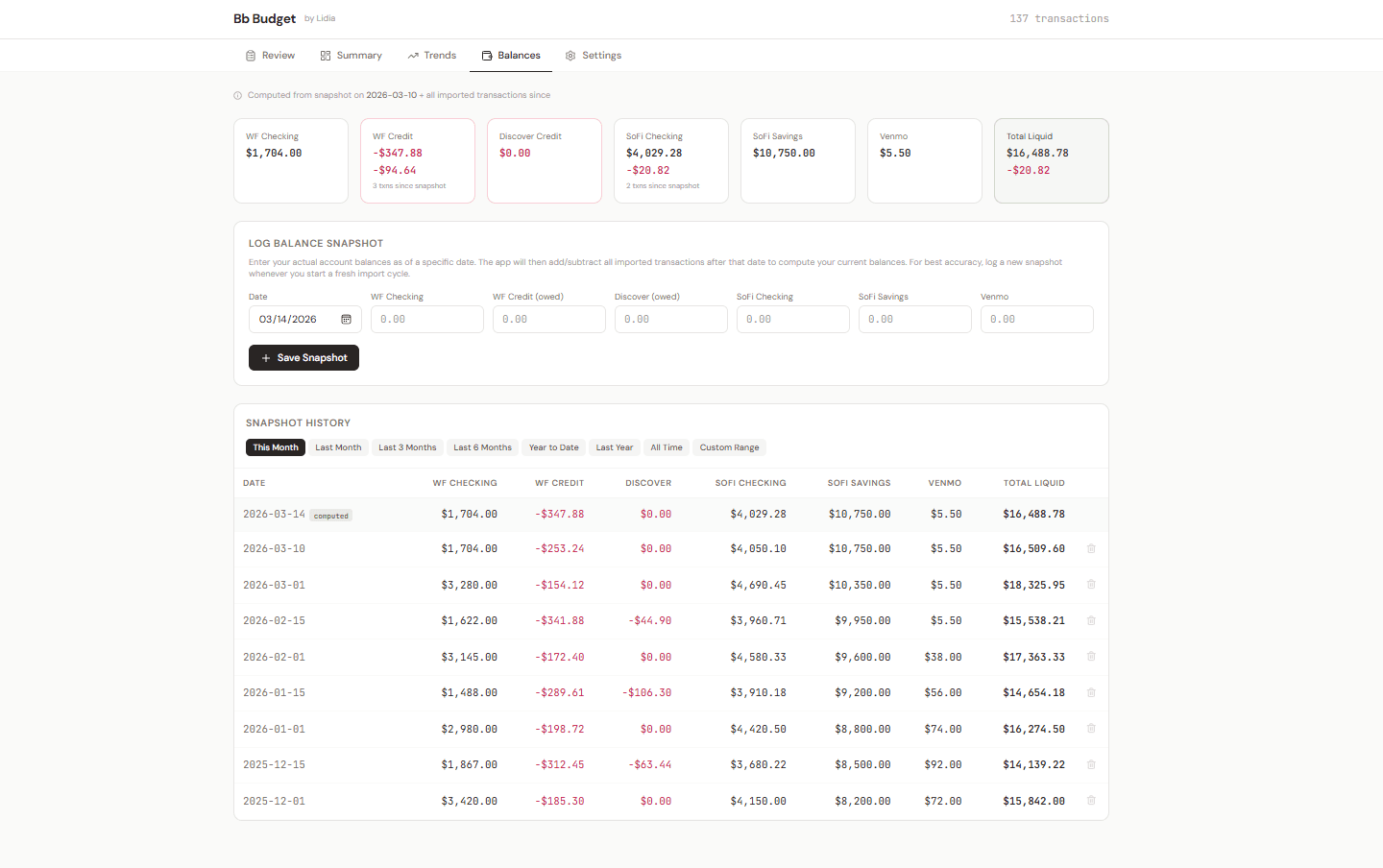
Bb Budget Balances tab showing computed balances for six accounts (WF Checking $1,704, WF Credit -$347.88, Discover Credit $0, SoFi Checking $4,029.28, SoFi Savings $10,750, Venmo $5.50) with Total Liquid of $16,488.78. Below, a Log Balance Snapshot form and Snapshot History table showing 8 snapshots from December 2025 to March 2026.

Settings & Data Management

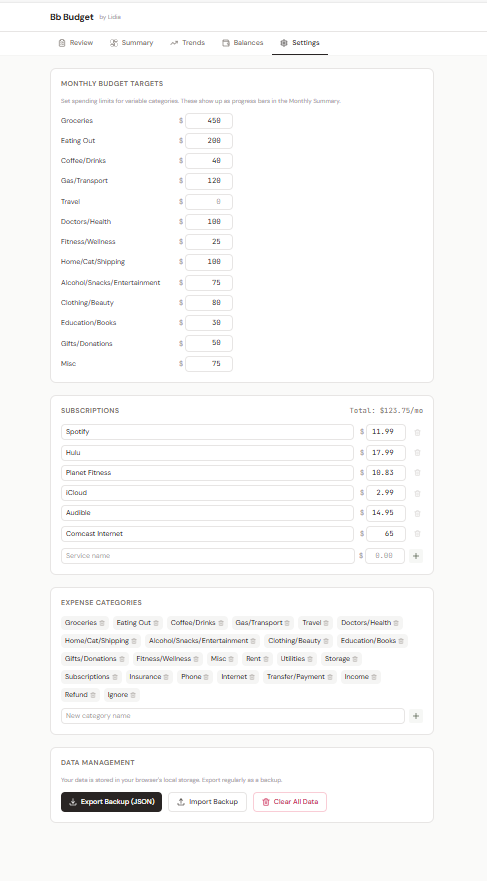
Users own their data completely. The Settings tab lets them customize expense categories (add, rename, delete), manage subscriptions, set budget targets, and — critically — export and import full JSON backups. The "Clear All Data" action is separated and styled as a destructive action. Data never leaves the browser unless the user explicitly exports it.

Bb Budget Settings tab showing Monthly Budget Targets with per-category spending limits, Subscriptions section (Spotify, Hulu, Planet Fitness, iCloud, Audible, Comcast Internet totaling $123.75/month), Expense Categories as deletable tag chips, and Data Management section with Export Backup, Import Backup, and Clear All Data buttons.

Accessibility

Financial tools that exclude users with disabilities exclude people who may need them most. Budgeting anxiety is already a barrier — inaccessible UI should never be another one. An honest audit of the tool revealed six concrete gaps. Rather than claim compliance I hadn't earned, I treated each gap as a design task and fixed them.

What the Audit Found — and What I Fixed

Text contrast: Secondary text (helper text, inactive tabs, chart labels) was upgraded from stone-400 to stone-500/600 across all components. All text now meets WCAG AA. Primary body text (#292524 on #fafaf9) achieves ~16.5:1.

Colorblind-safe palette: Replaced red/green income/expense coding with teal (#0d6e6e) and wine (#c92250) — distinguishable by users with protanopia, deuteranopia, and tritanopia. Applied consistently across all views and charts.

Form labels everywhere: Every input, select, and filter now has a proper <label> with htmlFor association — including Settings budget targets, subscription fields, balance snapshot inputs, and inline category edits. No more placeholder-only inputs.

Chart accessibility: Added screen-reader-only data tables as alternatives for all three Recharts visualizations. Chart containers have role="img" with descriptive aria-label attributes so assistive technology can convey the chart's purpose.

Keyboard navigation: The account filter dropdown now supports Arrow Up/Down, Home/End, Enter/Space to select, and Escape to close — with proper role="listbox", role="option", and aria-selected attributes.

Screen reader support: Added a skip-to-content link, aria-live="polite" on the transaction counter, proper tab navigation ARIA (role="tablist", aria-selected, aria-controls), and aria-hidden="true" on all decorative icons.

Before & After

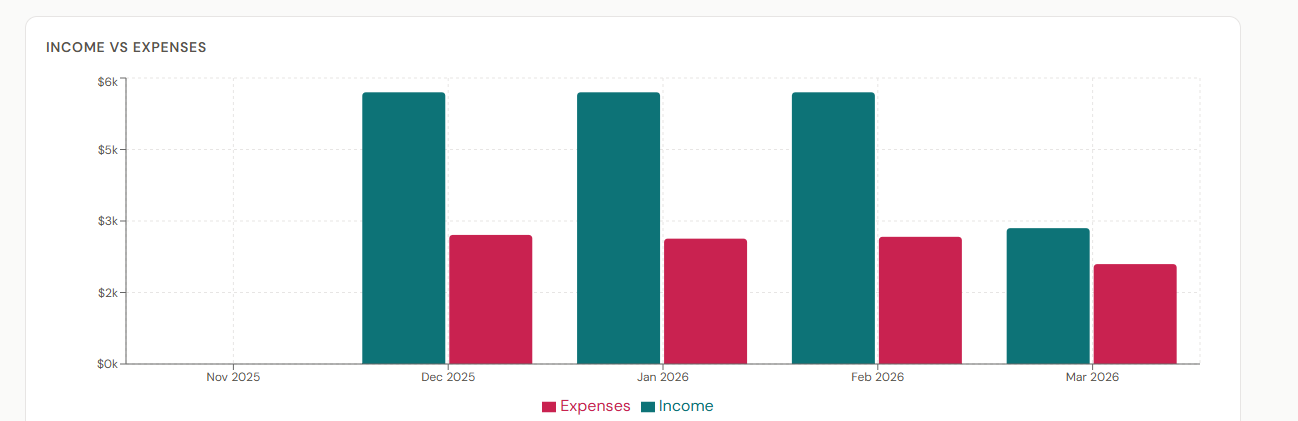
The Income vs Expenses chart originally used olive green and muted rose — colors that are difficult to distinguish for users with protanopia or deuteranopia. The updated palette uses teal and wine, which maintain clear separation across all common types of color vision deficiency.
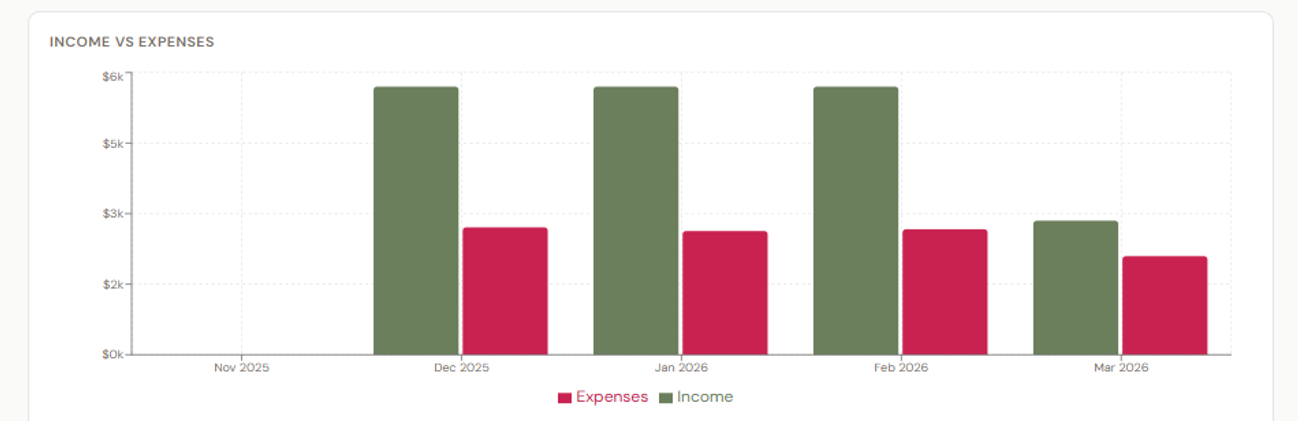
Before: Income vs Expenses bar chart using olive green and muted rose colors that are hard to distinguish with color vision deficiency
Before
After: Income vs Expenses bar chart using teal and wine colors that are distinguishable across all common types of color vision deficiency
After

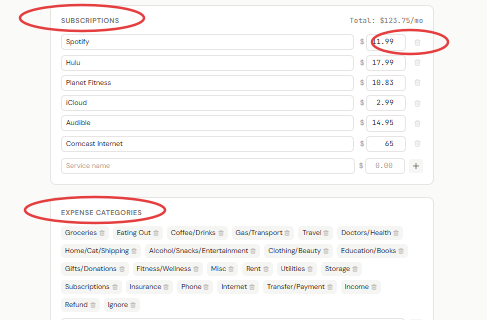
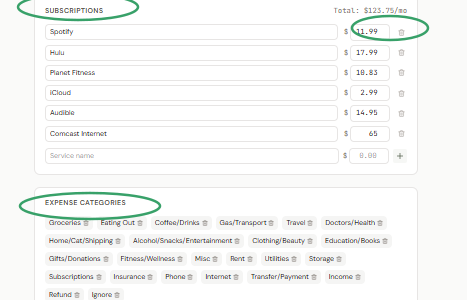
The Settings page previously relied on low-contrast placeholder text and lacked visible labels on many inputs. After the update, all form inputs have proper labels, category names use higher-contrast text, and the overall hierarchy is clearer.

Before: Subscriptions and Expense Categories with low-contrast text and inputs lacking proper visible labels, problem areas circled in red
Before
After: Subscriptions and Expense Categories with improved text contrast, proper form labels, and clearer hierarchy, improvements circled in green
After

Remaining Work

  • Recharts elements themselves are not keyboard-navigable (library limitation) — the sr-only data tables serve as the workaround
  • No hands-on screen reader testing (NVDA, JAWS, VoiceOver) has been conducted yet

Outcomes

This is not a prototype — it's a working tool I use to manage my own finances. It has processed over 1,300 real transactions across multiple bank accounts, and it replaced the spreadsheet I maintained for years.

Deliverables

A fully functional offline budgeting tool with CSV import (Wells Fargo, SoFi, Venmo, Discover), auto-categorization with 100+ merchant rules, budget targets with progress tracking, three trend visualizations, multi-account balance snapshots, subscription management, and JSON backup/restore — all in the browser with zero server dependencies.

What It Solved

Eliminated hours of manual spreadsheet work each month. CSV import and auto-categorization handle the tedious parts, while balance snapshots and review workflows keep me actively verifying the numbers. My financial data never touches a third-party server.

What I Learned

Using this tool every day changed how I think about design. Every friction point I hit while categorizing my own transactions became a feature — the auto-categorize function, the "mark all categorized as reviewed" shortcut, the progress bar that turns a chore into a completable task. Being both the designer and the daily user means nothing stays broken for long.

The biggest technical surprise was how capable localStorage is as a persistence layer. With JSON export/import for backup and careful data structure design, it handles over a thousand transactions without performance issues — no server, no database, no accounts. The biggest design lesson was about honesty: I initially assumed my high-contrast, minimal layouts meant the tool was fully accessible. A real audit revealed six concrete gaps — secondary text contrast, colorblind-unsafe colors, missing labels, inaccessible charts, broken keyboard patterns, and no screen reader support. Treating each gap as a design task and fixing them taught me more about accessibility than any checklist ever could.

Next Steps

Screen Reader Testing Up next

Conduct hands-on testing with NVDA, JAWS, and VoiceOver — particularly for chart data table alternatives, the transaction table, and the account filter dropdown — to validate the ARIA implementation against real assistive technology.

Recurring Transaction Detection

Automatically identify recurring charges from transaction history and pre-populate the fixed expenses section, reducing repetitive manual entry each month.

Keyboard-Navigable Charts

Recharts does not support keyboard navigation of individual data points. Explore custom chart components or an alternative library that allows users to arrow through data series and hear values announced.

High-Contrast Mode

Test and optimize for Windows High Contrast Mode and forced-colors media query to ensure all UI boundaries, interactive states, and chart elements remain visible.